A connection between nodes can be active, limited or inactive.
Active - conversion will be done starting from an unprocessed node or a node not marked as processed.
Limited - if the selected node has to be converted directly over each connection with this status, the node from which the connection is made, this leads up (if it was not converted or without mark that were processed). If the connection with this status occurs earlier, the nodes will be converted occurring after the merger (if they were not converted or without mark that were processed and all subsequent calls between nodes have a status of active).
Inactive – Connection with this status makes node will not be recalculated from which the call comes out and all the nodes preceding it.
CSV file – CSV file import/export. Import: node 'CSV' from the specified path to the file and setting basic properties of the file and the import parameters and the definition of the table, which will import. Export: definition table, which will export and node 'CSV' with the stated path to the file and setting basic properties of the file and the export parameters. To see an example of the use of node please watch film.
XLS/XLSX file – XLS/XLSX file import/export. Import: node 'File XLS / XLSX' with the given file path and selecting sheet set basic parameters imports and the definition of the table, which will import. Export: the definition of the table, which will export and node 'File XLS / XLSX' the specified path of the file and setting basic properties File and export parameters. To see an example of the use of node please watch film .
Database table – the definition of the database table. To see an example of the use of node please watch film
Data source – the definition of the data source. Node is used to import/export data from other aliases, than the one which is running Workflow. To see an example of the use of node please watch film .
Analyzer 2D – allows for divisible table for the two variables. besides numerical values are graphical presentations of tables in the form of color maps and shapes and colors (shapes are available for simultaneous select two indicators for analysis). For numeric variables with a large number of the ranges are created. After selecting the analyzed variables run the execution of conversion (F6). Tables show:
- cardinality (COUNT),
- the percentage of the number of cases in the entire set of observations (TOTAL%),
- percentage of the total number of cases in the cases specified column (COL%),
- percentage of the total number of cases in the cases specified row (ROW%).
It is also possible the choice of dependent variable and its value being for analysis. Then additionally presented are:
- the percentage of observations belonging added cells in which the response variable takes a value in the total number of observations the cell (TARGET%),
- the number of different values of the dependent variable in the observations of the cell (DISTINCT).
Choosing several windows showing possible indicators causes the presentation of the table two-way several indicators in a single cell. To see an example of the use of node please watch film .
Eagle View – graphical representation of the analyzed table. Each value in the table corresponds to a rectangle, the color of which is associated with the value of the observation. Hovering the mouse over the selected observation displays values in the table field. Clicking on the box to all the backlight cells of the table which have the same value. Condition Where below the graph corresponds to the SQL where clause in a query-based on the analyzed table. The condition allows you to limit the number of observations presented graphically.|Field Filter is used to select some columns from a table (you have to select at least two columns). The column names should be separated by spaces. To see an example of the use of node please watch film .
Freq – quick overview of basic statistics for a defined table. For a description of analysis available at the node can lap in the documentation describing tool Freq . To see an example of the use of node please watch film .
Filter tables – node is used to create a table containing the selected fields from the source table. to the result table are transferred to the values of all rows and selected columns of the source table. To see an example of the use of node please watch film .
Join tables (join) – node is used to combine data from two tables in one. One row of the result table contains data from one row each source table. Table result set contains all fields from both tables source. Possible to combine in two ways:
- Use row id – combined data from the same row number; in this case, the field names should be different in the two source tables,
- Use the Key Columns – combined data of the same value in the specified field (specified fields); in this case the coupling boxes should be present in both tables the source.
To see an example of the use of node please watch film .
Table sample – node is used to randomly select a certain number of rows from the source table. Parameter Size of sample shows how great an attempt should be drawn. Parameter Grain sets grain the random number generator. To see an example of the use of node please watch film .
Custom SQL (SQL creator) – node gives you the ability to create and generate their own SQL query. Query results are written to the result table. To see an example of the use of node please watch film .
Split table – node is used to divide the table into several tables with fewer rows. each row of the source table will be in one of the result table. There are possible splits:
- random distribution - rows will be allocated at random to result sets with then the approximate proportion of rows in the result sets points in the division. For example, the distribution is 3.7, in the first table is to be found in approximately 30% rows of the source table, in the second the remaining 70% of the rows. Parameter Grain sets grain the random number generator.
- distribution of the attribute values - rows will be assigned to the result table by value in the field specified by the user. node creates as many tables as there are different values for the specified field. The field, which was followed by the division is not included in result sets.
- Automatically follow the graph to calculate the value of an attribute unique - check option causes the node after saving the settings will be automatically count of the number of result sets if the database exists source table ..
Additional parameters of the node: - Group - selecting this option will create a result table with all the data the source table with an extra field GroupID, wherein the number group to which he was assigned row. - Generate Incremental names – in the result table names appear suffix's - consecutive numbers starting with 0 - Use the prefix – name of the result table will be started from the user-specified prefix. To see an example of the use of node please watch film .
Split table – performs a combination of data from two source tables into a single result set. The source tables must have the same structure, which will structure target table. To see an example of the use of node please watch film .
Where conditions – node allows you to save the condition of choice, according to which the selected data will be the source table to the result table. To see an example of the use of node please watch film .
Change column types – node allows you to change the column types. For example, if the field contains an Integer, and is of type String, it is possible the conversion to Integer type (and vice versa). To see an example of the use of node please watch film.
Replace missing – node is used to replace the empty data values Custom Attributes: Auto - missing values are replaced with the mean value for the variable numerical and dominant for nominal variables and ordinal Mean - the lack of values are replaced with the average value of the variable (only for numeric variables) Median - the lack of replaced are the median value of a variable based Distribution - the lack of are replaced by random values generated from the decomposition of variable after the removal of empty. In addition to the variables number you can specify the percentage of observations about maximum and minimum values that will not be taken into account when generating the replacement value of null values. This is done by setting the parameter values: Cut Lower Percent i Cut Upper Percent . Modal - missing values are replaced with the dominant value, the node used for the variable numeric or categorical Custom - Missing values replaced are the value specified by the user. To see an example of the use of node please watch film .
Standardize – standardization of variable distribution performs a linear transformation of the variable so that, after standardization of the average value of the variable is 0, a value greater than the standard deviation from the mean value was 1. The transformation performed for numeric variables. To see an example of the use of node please watch film .
Outlier transformation (transformacja wartości odstających) - transformation available for numeric variables. The transformation converts the specified percentage of the lowest (p1) and the highest (p2) variable values corresponding respectively quantiles order of P1 and 1-P2. P1 and P2 are the values corresponding to the parameters LowerPercent and UpperPercent . Parameter MinValuesCount is the minimum number of distinct values of the variable, required to perform the transformation. To see an example of the use of node please watch film .
Discretize – Transformation is available for numeric variables. Creates variables whose values are designated ranges of the transformed variable. Parameter QuantilesCount specifies the number of compartments will be split variable. To see an example of the use of node please watch film .
Binarize – categorical variable transformation in n binary variables, where n is the number of categorical variable. The transformation leaves no changes in the gaps. If the variable takes a larger number of than specified by the parameter Max Values Count , then binarization of the variable is not performed. To see an example of the use of node please watch film .
Normalize – node is used to normalize vectors. It can be applied if selected for transformation at least two numeric variables. The values of the variables in one line are treated as another vector of the coordinates of the end beginning at the origin. The values of these variables divided by the length of the vector, which is calculated using a measure of given by the parameter Norm Type .There are the following standards: Euclidean, Manhattan, Maximum, Minimum, zero. To see an example of the use of node please watch film .
PCA (principal component analysis) – node performs principal component analysis to the transformation of variables original to obtain a smaller number of uncorrelated (orthogonal) transformed variables. The transformation is performed only for numeric variables. Parameter Criterium can take two values: kaiser i number. At the first of these algorithm selects the optimal number of outcome variables. If the value is set number, then the user can specify the number of output variables. This number is the value of the parameter ComponentsNumber. If value ComponentsNumber is equal to 0, then the algorithm determines the maximum number of principal components. To see an example of the use of node please watch film .
Rescale transformation – linear transformation of the variable so that the variable transformation accepted values from a specified range. Lower and upper limit of this interval is determined by the parameters: Max Value and Min Value. To see an example of the use of node please watch film.
Weight of evidence – node determines the value of the weight of evidence. Transformation available for the variables numerical and categorical. If the variable takes more number of values than specified by the parameter Max Values Count , the variable transformation is not performed. Parameter Target Attribute specifies the name of the dependent variable (must be a categorical variable). Parameter PositiveTarget Valule – should change to the positive category of dependent variable. To see an example of the use of node please watch film.
Feature Selection a node performs selection of variables which significantly explain variability of a target variable. It requires one predecessor: Database Table node. Edit a node to access a scoreEvaluators object which calculates statistics for selected variables. A node performs selection for nominal and continuous variables. In case of continuous variables a node usually discretizes a variable. The following algorithms are available:
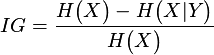
- InformationGainFeatureEvaluator
Selection method based on an Information Gain measure which
assesses usefulness of a given variable X to predict variable Y.
It is calculated in the following way:
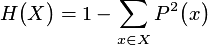
where H is a measure of entropy or a Gini index: If H is entropy measure, then it is defined using the following formula:
 If H is replaced with Gini index, then:
- Filter1RFeatureEvaluator
Selection method of calculating the relevance for a nominal variable.
It is based on a contingency table describing the distribution of X variable
for a certain value of target binary variable Y.
If variable Y takes two values: 1 and 0, then the relevance
of X variable is calculated in the following way:
where
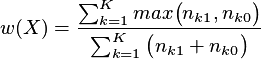
 value from a contingency table - number of observations, which for a variable X
take k-th value and for a variable Y take value 0,
value from a contingency table - number of observations, which for a variable X
take k-th value and for a variable Y take value 0,
 value from a contingency table - number of observations, which for a variable X
take k-th value and for variable Y take value 1.
In case of uneven distribution of values 0 and 1, the contingency table
is modified so values
value from a contingency table - number of observations, which for a variable X
take k-th value and for variable Y take value 1.
In case of uneven distribution of values 0 and 1, the contingency table
is modified so values
 are replaced with
 where
and
where
and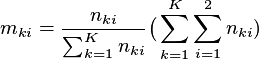
 number of cases for which X variable takes i-th value.
If some values of variable X are represented by few cases, the rows in
the contingency table are joined to get more numerous groups of cases.
number of cases for which X variable takes i-th value.
If some values of variable X are represented by few cases, the rows in
the contingency table are joined to get more numerous groups of cases.
- NullCountFeatureEvaluator - calculates statistics proportional to the number of cases with missing values. Statistics equals 1 if there are no missing values and 0 if there are missing values only.
- SmartTreeFeatureEvaluator - algorithm creates random forests to predict
target variable. Algorithm uses two parameters:
- impurity decrease importance - determines how much (on average) a variable decreases entropy during the process of building a tree. The parameter informs if the statistics should be calculated.
- Permutation importance - determines how much random swap of values of a variable changes prediction error. The parameter informs if the statistics should be calculated.
- StatisticalTestEvaluator - an application of the a statistical test
to check connections of a target variable with independent variable.
The following statistical tests are available:
- Student's T – evaluates how close are means of a target variable and mean of the analyzed variable. The test is used for numerical variables.
- Student's T Paired – evaluates how close to 0 is a difference of means of an independent variable and a target variable. The test is used for numerical variables.
- Pearson - calculates a Pearson correlation coefficient between the target variable and an independent variable. The test is used for numerical variables only.
- Crammer's V – calculates values of normalized ch-square test. The test is used for nominal variables only.
- F Test - evaluates how close are standard deviations of a variable and a target variable. Test is used for numerical variables.
- Tree1DFeatureEvaluator -
Algorithm builds decision trees based on one variable.
The statistics informs what is the quality of a tree based on a given variable.
The algorithm uses the following parameters:
- Max Tree Depth - maximal depth of a tree
- Min Leaf Size - minimal number of observations in a leaf node
- Min Leaf Size Prc - minimal percentage of observations in a leaf
- Null Test Allowed - if a division which tests whether missing values are in the data is allowed
- Permutation importance - informs how much a random change of a variable influences the the value of an error. The parameter defines if the statistics should be calculated.
- Trees No. Per Attribute - number of trees per each variable
The above algorithms use common parametrs:
- Recalculate evaluation – parameter defining if the algorithm should be run. Unchecking the parameter means the values of the last run will be used. This allows the user to add results of recently added algorithms to previous results.
- Selected – enables the user to calculate many statistics by several algorithms. Further calculations will be performed only for variables which are selected. In case of checking this option for several algorithm average results of scoring variables will be averaged.
- InformationGainFeatureEvaluator
Selection method based on an Information Gain measure which
assesses usefulness of a given variable X to predict variable Y.
It is calculated in the following way:
Logistic regression – node used to calculation a logistic regression model as described in the documentation in section Logistic regression . Require Database Table node. The node may also connect the two preceding tables of data. One of the which is the collection of validation data. Role settings tables are made in the properties of the node logistic regression. Node requires setting attribute target . The results of the calculation of the regression model can be seen when you select Display Model in teh context menu of the node. To see an example of the use of node please watch film .
Scoring card – node to score card calculation as described in the documentation section Scoring card . Node requires two preceding nodes: Logistic Regression and Database Tables. The results of the calculation of cards are available in the context menu of the node when you select: Display model . To see an example of the use of node please watch film .
Attribute usage - a node for selection of variables in the model and their role in the model. Variable role for the model is set in the field usage. Statistical type of variable can be set in the field attributeType. Node requires one node preceding - the database table.
Decision Tree – node is the construction of the classification tree model as described in the documentation in section Decision Trees . Requires one preceding node: Database Table. Node requires setting attribute target. The results are available in the context menu when you select a node Display Model . To see an example of the use of node please watch film .
Kohonen clustering – node performs the task of building a network Kohenena as described in the documentation section Kohonene Network . Requires one preceding nodes: Database Table. The results are available in the context menu when you select a node Display Model . To see an example of the use of node please watch film .
Linear regression – node performs the task of building a linear regression model as described in the documentation in section Linear regression . Requires prior node: Database Table. Node requires setting attribute target. The results available are in the context menu when you select a node Display Model . To see an example of the use of node please watch film .
Smart Trees – node performs the task of calculating the random forest for a given data set according to described in the documentation section Smart Trees . Requires prior node: Database Table. Node requires setting attribute target. The results are available in the context menu when you select a node Display . To see an example of the use of node please watch film .
Regularized linear regression – node performs the task of building regularized linear regression model. Requires one preceding nodes: Database Table. Node requires setting attribute target. The results are available in the context menu when you select a node Display . To see an example of the use of node please watch film .
Regularized logistic regression – node performs the task of building regularyzowanego logistic regression model. Requires one preceding nodes: Database Table. Node requires setting attribute target. The results are available in the context menu when you select a node Display . To see an example of the use of node please watch film .
Build a network – node to the construction of a graph as a representation of the social network based on the data the links between nodes. Requires one node preceding – Database Table. Description of build a network is in the documentation in Chapter Build a network. To see an example of the use of node please watch film .
Network Analysis – node calculation is run for certain algorithms on the basis of network. Node requires two predecessors: Build a network node type and an additional database table in which data is stored Additional algorithms used. In this table, one of the column should contain the identifiers of vertices. It should be indicate the properties of the node in the Vertex_id . Following algorithms are available:
- Aggregator
- CommunityAggregator
- Community Statistics
- Equivalence
- HITS
- Local Equivalence
- Modularity
- Page Rank
- RoleFinder
- SizeCommunityFinder
- SpreadingActivation
- LouvainCommunityFinder
- Triads.
The calculation results of all algorithms are written to a database table. = To see an example of the use of node please watch film .
Filter Network – node is the selection of specific vertices networks and connections between them, that is, construction subnet. Requires two preceding nodes - one type of database tables and the second type of Build Network. In the database table should be one field with the number of vertex. Description of functionality filtering network is in the documentation in Chapter Filter network To see an example of the use of node please watch film .
Network Visualization – wnode is network visualization. Node requires one node preceding - the type Filter Network or Network Analysis. Description of network visualization functionality can be found in dokumentation see Chapter Network Visualization To see an example of the use of node please watch film .
Logistic Regression Report - Node is used to export the results of a logistic regression model calculations to file MSExcel. Node requires one node preceding - Regression Logistics. The calculation results are available in the context menu of the node when you select Show Report . To see an example of the use of node please watch film .
Scoring Code – node generates code based on the scoring model definition. Node requires one preceding node - the node model. This parameter specifies the Language code the language in which you want to generate the code. The generated code Scoring can be seen in the context menu when you select a node Show Scoring Code . To see an example of the use of node please watch film .
Scoring – node is used to made data scoring based on the model created. node requires two preceding nodes: node node modeling and data. The results are stored in the table. Node requires the definition of the task applyTask. To see an example of the use of node please watch film .
Approximation Test Results – node is used to share results of the tasks of approximation. Node requires two nodes prior to: Linear Regression and Database Table containing the data to test the model. Node requires defining the model. The results are available in the menu context node when you select Display . To see an example of the use of node please watch film .
Results of Testing Data – node is compared to the results of skinning data based on the defined model with real results obtained for this data set. Node requires one node preceding - the database table containing:
- the results of skinning based on the model,
- the probability of interest to us the value of the variable target,
- the actual results obtained target variable for a given set of data.
The results are available in the context menu when you select a node Display . To see an example of the use of node please watch film .
Compare Approximation Results - node is compared to the results of the two models of approximation. Node requires at least two types of nodes preceding Test Results Approximation. The results of the calculation are available in the context menu when you select a node position Compare of histograms . To see an example of the use of node please watch film .
Compare Classification Results – node is compared to the results of the two classification models. Node requires at least two types of nodes preceding the Classification Test Results. You must specify the path and file name to which will be export comparison results. Name of Classification Test Result nodes must be shorter than 32 characters and can't contain ": \ / ? * [ ]". The results are available from the context menu node when you select Compare Charts . To see an example of the use of node please watch film .
Classification Test Results – node is used to share the results of testing the classification model. It requires two preceding nodes - a Classification model node and the Database Table that contains the data for testing. The results are available in the context menu when you select a node Display . To see an example of the use of node please watch film .
Kolumnowy – creates a column chart. In the properties of the node must specify the variables category and values. Each observation (one line) creates one column on the graph. The height of the column corresponding to the variable value. Observations belonging to the same category are placed next to each other (in this same group) on the graph. Serial numbers of observations within each category have the same color. It is possible to specify additional variables whose values will appear on the chart. Then presented are the average values of the variables selected in the positions: Values and Additional values calculated for each category. To see an example of the use of node please watch film .
Pie – There are created so many charts what is the maximum number of different observation within the specified category. Each subsequent graph corresponds to the next number of observations in each category. The graph shows share of the value of the variable specific category for a total value of n-th observation for all categories. To see an example of the use of node please watch film .
Line – creates a line graph connecting the successive points of the next observation. The axis values X and Y of these points are given in the properties of the node. In the case of administration variable Series , the observation will be divided into groups according to the value of this variable. Separate the line will be drawn for each category. If the variable Series is not given, then select the variables in the fields Additional values will cause the appearance of successive lines on the graph corresponding to values of a new variable.To see an example of the use of node please watch film .
Point – creates a scatter plot of the following observation. The values X and Y of these points indicate in the properties of the node. If you specify a variable Series , the observation will be divided into groups according to categories of this variable. Each category will correspond to points of different colors and shapes If value Series is not given then select the variables in the fields Additional values will cause the appearance of successive points on the graph corresponding to values of a new variable. To see an example of the use of node please watch film .
Bar - Graph similar to that of the column, the column that shows the level. To see an example of the use of node please watch film .
Area – The chart is created in a manner analogous to a column chart, except that the points of the same color are combined in one layer To see an example of the use of node please watch film .
Gython Scripts - Gython's script to run in the AM (execute any script). To see an example of the use of node please watch film
User Note - node gives you the ability to save any comments to the defined schema workflow. Comment text will appear on a flow diagram workflow marked node. If you select 'Add a note to script 'comment will appear in the generated code the script. Your comment will appear on the site in script code, What is clear from the order of processing nodes. To see an example of the use of node please watch film .